Hogyan készítsünk AI karakterlapot másodpercek alatt | BoldlyWithAI
Boldly with AI
How to Create a Character Sheet in Seconds (Step-by-Step AI Guide)
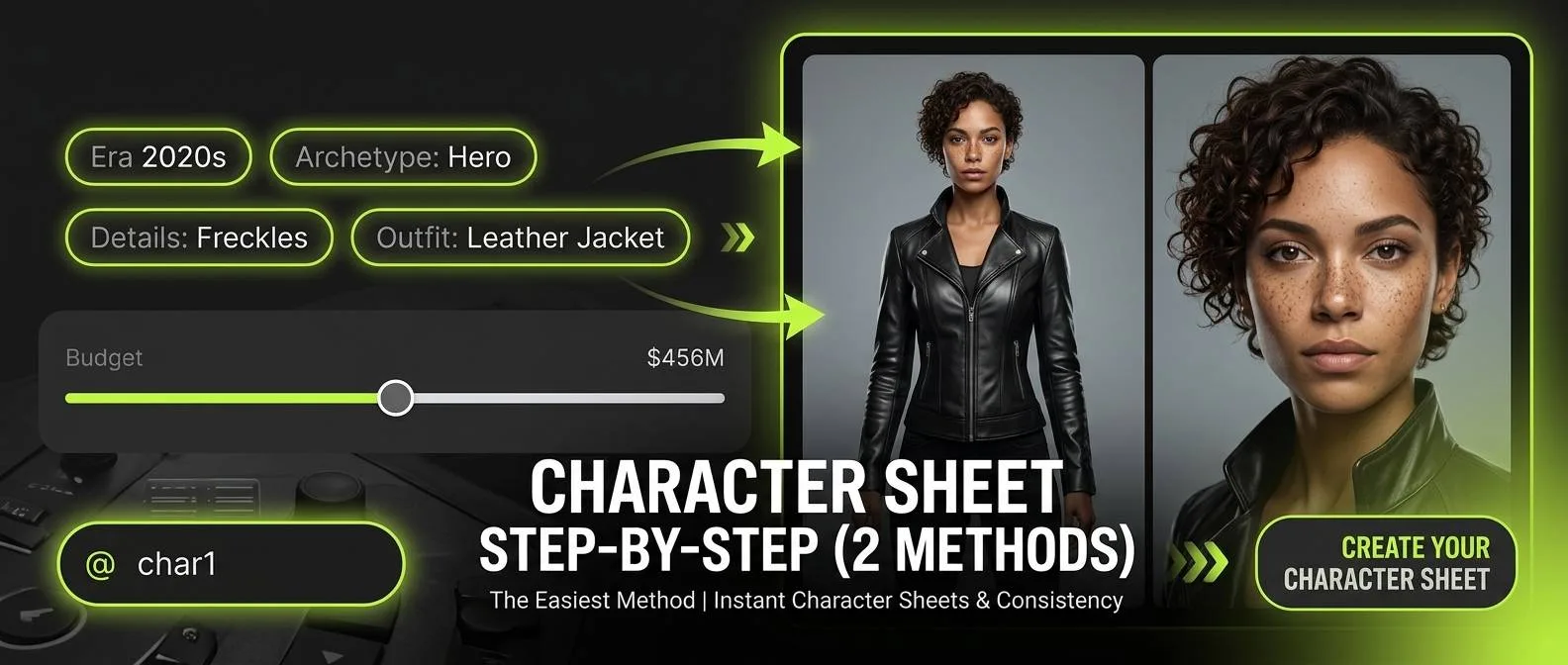
Maintaining character consistency across multiple scenes, videos, or animations is one of the biggest challenges in AI content creation. Whether you are working on an AI-generated film, marketing campaign, or comic book, having a structured character sheet ensures your subject retains the same features, clothing, and distinctive identity throughout your project. In this guide, we’ll show you the absolute fastest way to generate a two-panel character sheet using BoldlyWithAI Studio.
Why Use an AI Character Sheet?
A character sheet acts as a visual anchor for generative models. Instead of re-typing complex prompts for every single frame, generating a master character sheet allows you to:
- Save Time: Generate consistent visual assets in just a few clicks.
- Maintain Visual Consistency: Keep face shape, hair, outfit, and distinctive traits intact across different shots.
- Use Reusable Tags: Automatically save your character to your Elements and Assets library as a quick @tag (e.g., @char1).
How to Generate Your Character Sheet: 2 Easy Methods
You can generate character sheets in BoldlyWithAI Studio using two simple workflows:
Method 1: Using Presets & Custom Parameters (No Image Required)
If you are building a brand-new character from scratch, follow these steps:
- 1Access the Tool: Open the BoldlyWithAI Studio and navigate to Apps > Character.
- 2Set Genre & Budget: Pick your project's genre (e.g., Action, Sci-Fi, Fantasy, Comedy) and set the production budget slider.
- 3Customize Attributes: Navigate through the attribute tabs at the bottom:
- Era: Choose the time period (e.g., 2020s, Futuristic, Historical).
- Archetype & Identity: Define the core character role and background.
- Physical Appearance & Outfit: Select facial features, hair style, and wardrobe.
- Details: Add distinctive features like a Facial scar, Freckles, Tattoos, or an Eye patch.
- 1Assign a Name: Enter your character's tag name in the Character name field on the right (e.g., @char1).
- 2Generate: Click Generate to create your two-panel character sheet.
Method 2: Uploading a Reference Image
If you already have a photo or existing image you want to adapt:
- 1Go to Character Studio: Open Apps > Character.
- 2Upload Reference Photo: Click Choose photo or press Ctrl+V in the Reference photo box to paste your image.
- 3Set Name & Generate: Add a character tag name and click Generate.
Looking for an In-Depth "For Dummies" Tutorial?
If you want a detailed, step-by-step beginner guide with video demonstrations, prompt breakdowns, and advanced workflow tricks, check out our full community tutorial on Skool!
Start Creating Your Character Sheets Today
Creating consistent, production-ready characters no longer requires hours of prompt tweaking. With BoldlyWithAI Studio, you can go from concept to a fully usable character asset in just a few clicks.
Hozzászólások
Betöltés…