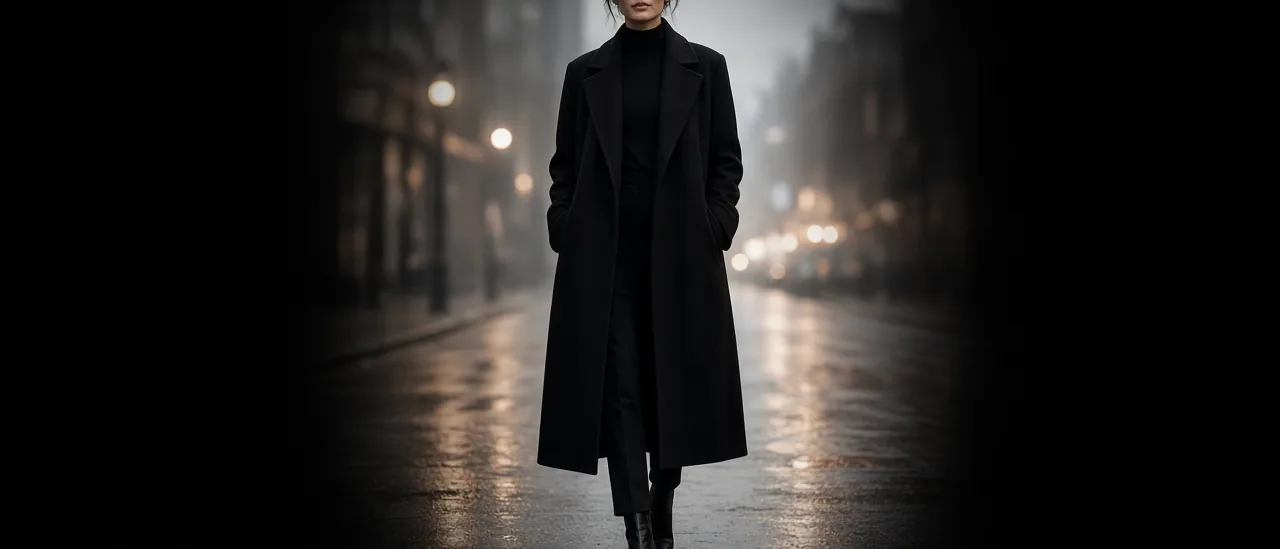
AI Video Background Remover for Film Studio Clips

Mihaly Varga
Founder & AI Creative Director
The Video Background Remover pulls a subject off the background of a finished clip. It lives with the video apps, and the same action is available after you open a video in Film Studio. Use it when the performance is right and only the set is wrong.
Clips that cut cleanly
- One person, clearly separated from the wall or street.
- Hair with some edge, not a hat that matches the background color.
- A short clip. A 5 to 10 second Kling take is easier to check than a long Seedance 2.5 shot.
- Limited motion blur. A whip pan eats the outline.
When to regenerate instead
If the face is wrong, the remover will not fix identity. Go back to the still. Nano Banana 2 or Influencer Studio for the person, GPT Image 2.5 Sunburst only if the frame was meant to be graphic. Then rerun Film Studio with Audio on if the new plate still needs sound.
A cutout has no set. Plan the new background before you export. A bright studio plate under a night-alley subject looks pasted even when the matte is perfect.
- 1Generate or upload the clip.
- 2Open the Video Background Remover.
- 3Check the hair and the hands on the first second and the last second.
- 4Composite onto a plate that matches the light direction.
Open the Video Background Remover when the person is already the shot you want.
Hozzászólások
Betöltés…