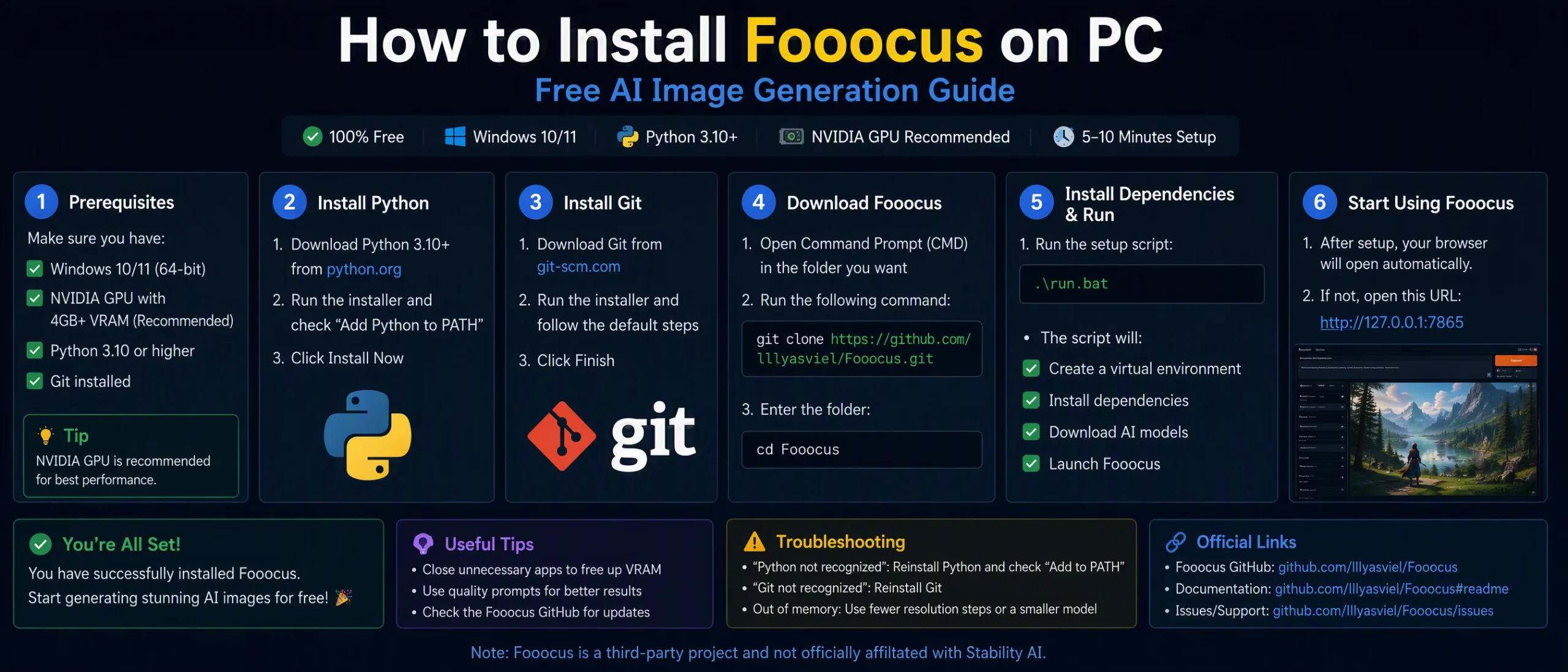
Cum se instalează Fooocus local: Ghid gratuit de imagini AI pas cu pas
Varga Mihaly
Prompt Engineer
Why Choose Fooocus for Free Local AI Image Generation?
If you want to generate high-quality AI images similar to Midjourney completely free, without generation limits, and directly on your own computer, Fooocus is the best tool available. Fooocus is an open-source image generation software powered by Stable Diffusion XL (SDXL). It eliminates complex technical interfaces while delivering top-tier photorealistic and artistic outputs out of the box.
Minimum System Requirements
Before starting the installation, ensure your PC meets the following specifications:
- GPU: Nvidia Graphics Card (Minimum 4GB–6GB VRAM; RTX 2060/3060 or better recommended).
- Storage: 20 GB to 30 GB free space on a fast SSD.
- Operating System: Windows 10 or Windows 11 (64-bit).
Step 1: Download the Correct Fooocus Package
Important: Avoid clicking the green "Code -> Download ZIP" button on GitHub. That downloads raw source code, which lacks the pre-configured Python environment needed for a smooth setup.
- 1Go to the official GitHub repository:
- 2Scroll down to the Download section.
- 3Click the direct link named >>> Click Here to Download <<<.
- 4You will download an archive file named Fooocus_win64_2-1-xxx.7z.
Go to the official GitHub repository:
Alternatively, download the official pre-configured Windows package directly here: Download Fooocus Package for Windows. This downloads an archive file named Fooocus_win64_2-1-831.7z.
Step 2: Extract the Files
- 1Move the downloaded .7z file to a drive with ample storage (e.g., C:\ or D:\).
- 2Right-click the file and select Extract using 7-Zip or WinRAR.
- 3Open the newly extracted folder (Fooocus_win64_2-1-831). Inside, you will see launch scripts like run.bat, run_anime.bat, and run_realistic.bat.
Step 4: Generate Your First AI Image
- 1In the text box at the bottom of the interface, type a prompt:
- 2a cinematic shot of a cute orange cat wearing an astronaut helmet, detailed
- 3Click Generate.
- 4Depending on your GPU power, your image will render in seconds.
Troubleshooting Common Installation Errors
If you encounter errors during setup, use these verified fixes to resolve them instantly:
Fix 1: Missing .bat Files or Wrong Folder Downloaded
- Issue: You downloaded Fooocus-main.zip instead of the release package and cannot find run.bat.
- Fix: Delete that folder. Return to the GitHub release section and click >>> Click Here to Download <<< to get the pre-built Windows bundle.
Fix 2: Error ModuleNotFoundError: No module named 'supervision'
- Issue: The installer skipped installing the supervision library during initialization.
- Fix:
- 1Press any key to close the terminal error window.
- 2Open your main Fooocus folder (e.g., D:\Fooocus_win64_2-1-831).
- 3Right-click an empty space in the folder and select Open in Terminal.
- 4Run the following command and hit Enter:
“.\python_embeded\python.exe -m pip install supervision”
Once installed, close the terminal and double-click run.bat again.
Fix 3: Error ModuleNotFoundError: No module named 'groundingdino'
- Issue: Inpainting or masking dependencies failed to install automatically.
- Fix (Installs all missing dependencies at once):
- 1Close the terminal.
- 2Right-click inside your Fooocus directory -> Open in Terminal.
- 3Run this command to install the full package requirements list:
- 4.\python_embeded\python.exe -m pip install -r Fooocus\requirements_versions.txt
- 5(Alternative for single package):
“.\python_embeded\python.exe -m pip install groundingdino-py”
- Restart Fooocus using run.bat.
Key Tips for Smooth Operation
- Keep the Terminal Open: Do not close the background command window while using Fooocus in your browser; it runs the local server processing your GPU commands.
- Access Advanced Features: Check the Advanced box in the browser UI to customize image aspect ratios, negative prompts, LoRAs, or enable Inpaint/Outpaint modes.
Comentarii
Se încarcă…